Changing your account or contact details
How can I change my phone number?
You can register one mobile number per account. This rule applies to all our licenses.
To change it yourself, follow the instructions below according to the platform you're using.
If, while updating your number, you get an error because it doesn't meet the minimum length, add zeros at the beginning.
Desktop
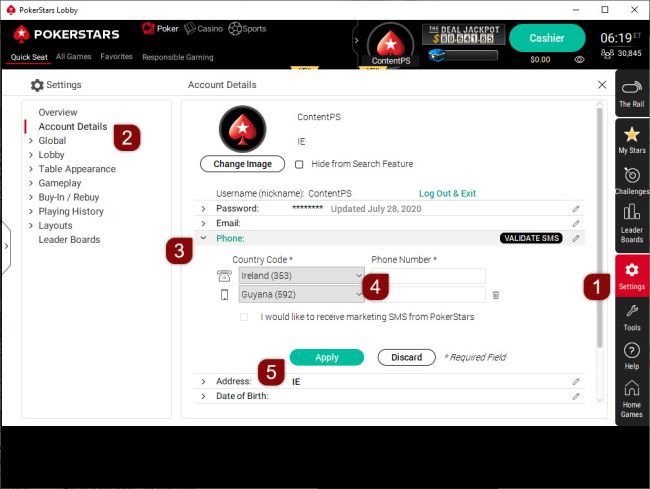
Log in to your account from our software and follow these steps:
- Choose 'Settings' from the main lobby.
- Select 'Account Details'.
- Then choose 'Phone'.
- Add or change your phone number. The country code is already filled in, so enter only the remaining digits.
- Finish by pressing 'Apply'.
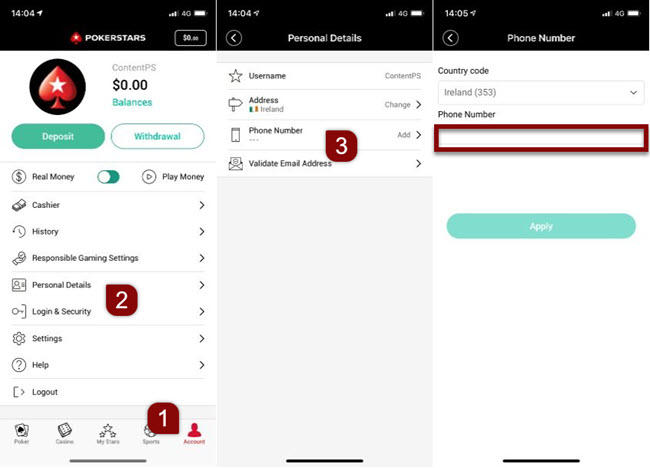
Mobile app
Choose this button to change your number via your mobile phone. You'll be prompted to log in if you aren't already.
Enter the digits in the 'Phone Number' field, then tap 'Apply'.

Website
Press the button below to change your registered phone number from our website. You'll need to log in if you aren't already.
Just enter the digits in the 'Phone Number' field, then press 'Apply'.
Can I use my phone number on a different account?
Yes, but to register your number to another account, you need to remove it from your current one.
First, access the same section of your account described above. Next, tap the trash can icon next to your number, then press 'Apply'. You can also change the number by writing over it with a different one.
Once you remove this number from your account, you'll be able to log in to your other account and follow the instructions above to add it.
How can I update my personal details - name, date of birth or gender?
Follow the instructions below to update your name, date of birth or gender on your account.
How can I update my name on my account?
If you made a mistake when entering your name and haven’t filled in the Real Money form and completed registration yet, contact us with this information, and we’ll update your name for you.
If you’ve already filled in the Real Money form but realized you made a mistake and need to update your details, upload a clear copy of a government issue ID. This can be a national ID card, passport or driver’s license.
If you need to change your name as you’ve recently married or divorced, send us the relevant marriage or divorce certificate. These documents should show your birth name and current name.
How can I upload my documents?
To upload your documents, follow these instructions based on the way you access your account:
Desktop
From the main lobby, choose 'Help' and:
- Help → Contact Us
- Security and Verification
- Upload Documents
Then, follow the instructions to upload your documents through our Contact Form.
To upload via our website or mobile:
How can I enter or update my date of birth?
If you’re entering your date of birth for the first time, log in to our desktop software, and select Settings → Account Details → Date of Birth. Enter your date of birth and press ‘Apply’. You can only do this from our desktop software.
If you made a mistake when entering your date of birth, send us a copy of a government-issued ID, and we’ll update it for you. Add the subject line ‘Change of date of birth’, and include the reasons for your request in your message.
How can I update my gender?
If you made a mistake when you entered your gender and haven’t completed the Real Money form, contact us with this information, and we’ll update your gender for you. If you officially changed your gender, send us a clear copy of a government-issued ID.
Important information
We can’t accept mobile phone screenshots from .ES players.
How can I update my email address?
Follow the instructions below to log in and update your email. Choose the platform you're using:
Desktop
- Log in to our desktop software
- Go to 'Settings'
- Select 'Account Details'
- Choose 'Email'
- Enter your new email address
- Confirm with 'APPLY'
To watch a video with step-by-step instructions, hit the play button. The video is in English only.
Mobile app
If you're using your mobile phone, press the button below. Then log in and follow the instructions.
To watch a video with step-by-step instructions, hit the play button. The video is in English only.
Website
If you use our website, press the button below. Then log in and follow the instructions.
We'll send a 4-digit code to your new email address. Once you have it, go back to the 'Email' section of your account and enter the code.
In case you didn't receive your validation code, check your junk and spam folders, as the code might have ended up there.
How can I change my home address?
Follow the instructions below to log in and update your address, based on the way you access your account:
Desktop
- Log in to our desktop software
- Go to 'Settings' on the right-hand side of the main lobby
- Select 'Account Details'
- Choose 'Address'
- Enter your new address
- Confirm with 'APPLY'
Mobile app
If you're on your mobile phone, press the button below. Then log in and follow the instructions.
Did you find this article useful?
Related Articles
- Guidelines for Responsible Gaming
- Closing your account
- Manage your table image
- Tournament congratulatory emails
- GDPR and personal information safety
- Using your account after GDPR data deletion
- Available support languages
- Fix connection issues using DNS
- Playing out of prohibited jurisdictions
- Real money availability in the United States